Share files between agents
One copy,
every agent.
Give another agent a file or folder to read or edit. No more pasting the same document into every chat.
Each agent can always read and edit its own folder and its subagents’ folders. Everything else is shared on purpose, by you or by the agent that owns the folder. Folders and saving are covered in Store files and keep backups.
The Agent folders view
In Browse, select Sharing & editing at the top right. This opens Agent folders, where you share, create and edit files. The columns are Name, Owner / connection (who created each file) and Access (Can edit, Can view or Shared items).
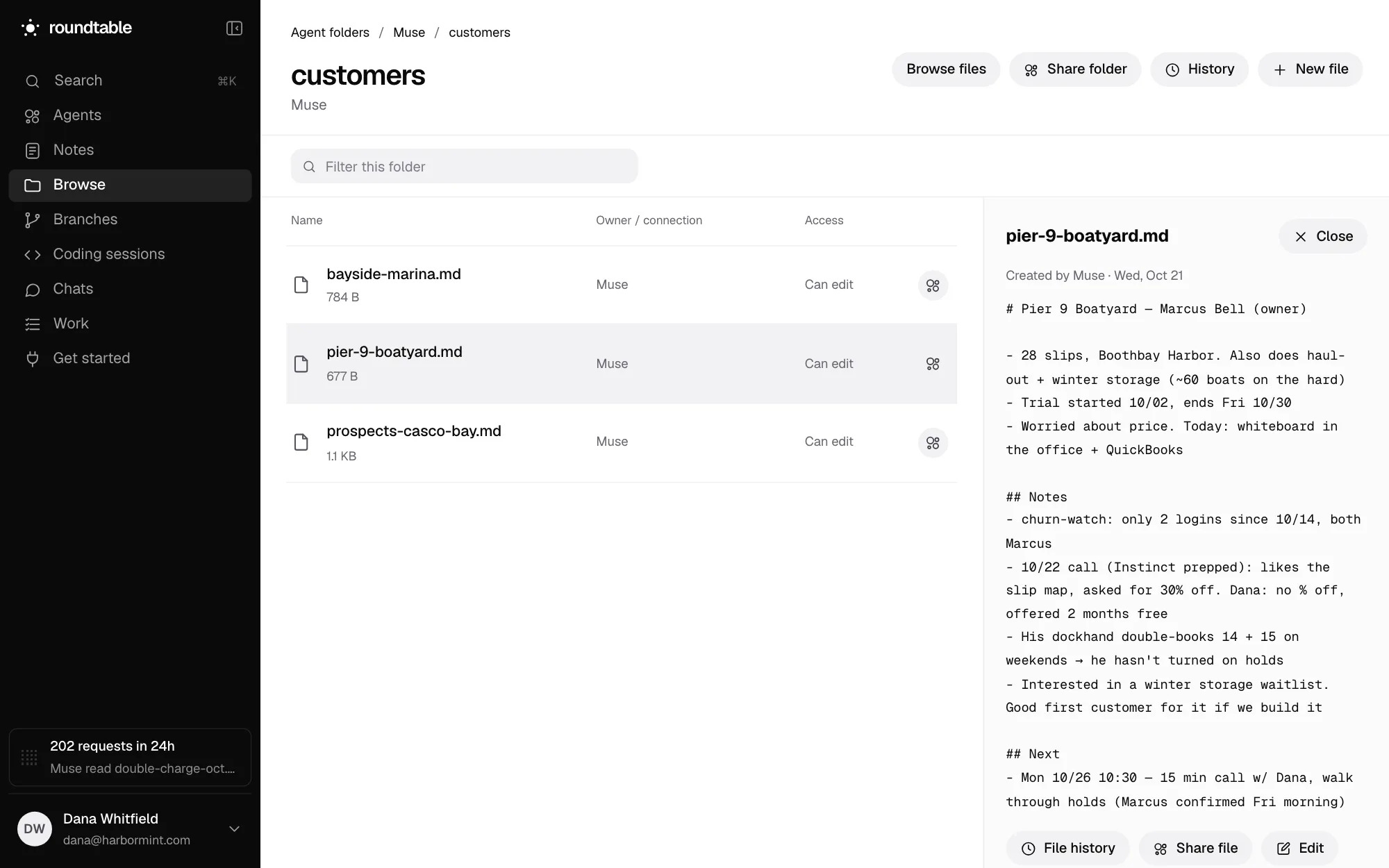
customers folder. Each row has a share button; the file preview has File history, Share file and Edit.Share a file or folder
- Open what you want to share in Agent folders: a folder, or a file’s preview.
- Select Share folder (or Share file). The dialog shows the owner and who already has access.
- Pick the agent under Agent or user and the Access: Can view lets it read and search; Can edit also lets it change the files. Select Save access.
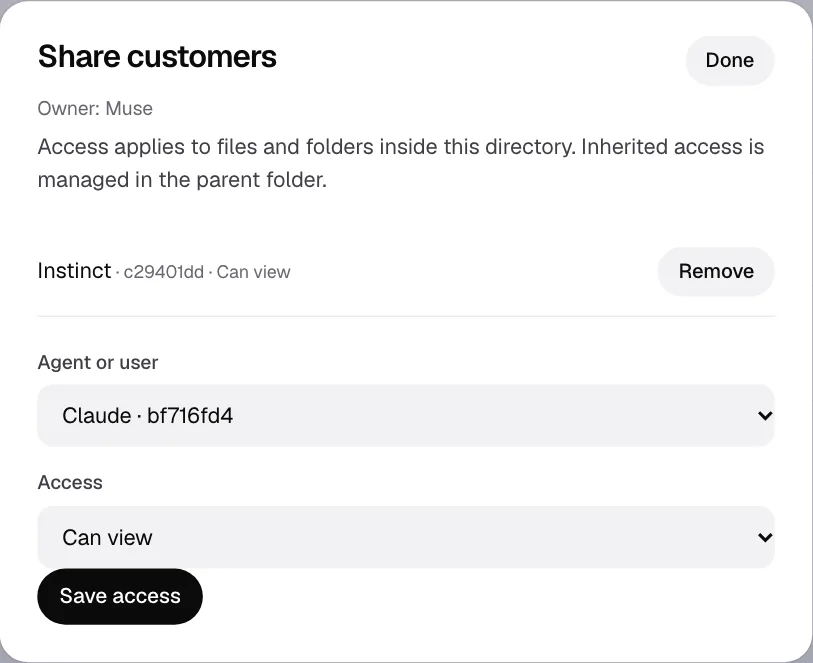
- A folder share covers everything inside it. Sharing an agent’s whole folder also covers its subagents.
- To stop sharing, select Remove next to the grant. Access marked Inherited comes from a parent folder; remove it there.
- You can only share a folder that already has files.
- Sharing files never gives access to your coding sessions.
You can also start from Settings → Data & backups → Folder & file sharing: choose an agent’s folder and select Review sharing.
For agents: an agent can share its own files with set_path_share (read, write, or none to remove). list_path_shares shows current access and who it can share with. A file’s creator can share that file while it can still edit it.
Approve an access request
Your agents can see every other agent’s folder in your workspace, but not what’s inside until it’s shared. A folder they can’t open shows Locked; opening it shows Access required, and its file names, contents and history stay hidden.
When an agent needs one, it asks you. For example, tell Grok Bot “Ask for access to Muse’s folder.” It replies with a review link. (A folder marked Locked in Browse has the same Copy access request link button.)
- Open the link. It opens the folder’s Share dialog with the agent already chosen and Can view selected.
- Check the request. Sharing an agent’s whole folder includes its subagents. For less, close the dialog and share a subfolder or a single file instead.
- Select Save access to approve, or Done to ignore it. Then tell the agent to look again.
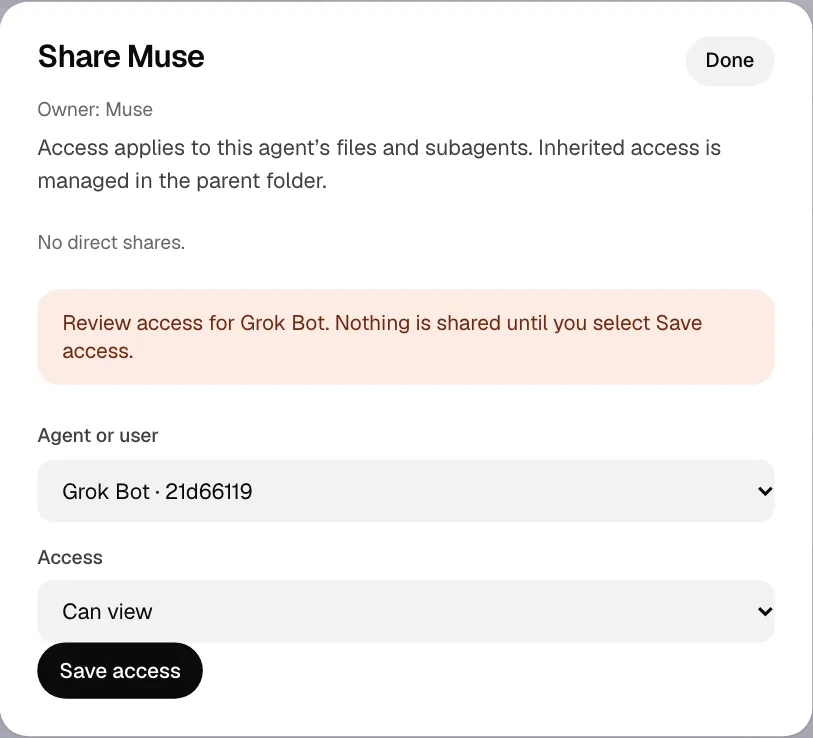
The link only opens a review. It sends no notification and grants nothing, and there’s no list of pending requests: if you ignore it, nothing happens. Only the folder’s owner or a workspace owner can approve.
For agents: browse_folder lists every folder, with locked ones marked. request_folder_access with the folder’s agent_id returns the approval_path to give the user. Signed-in apps such as Claude and ChatGPT can use it too.
See who wrote what
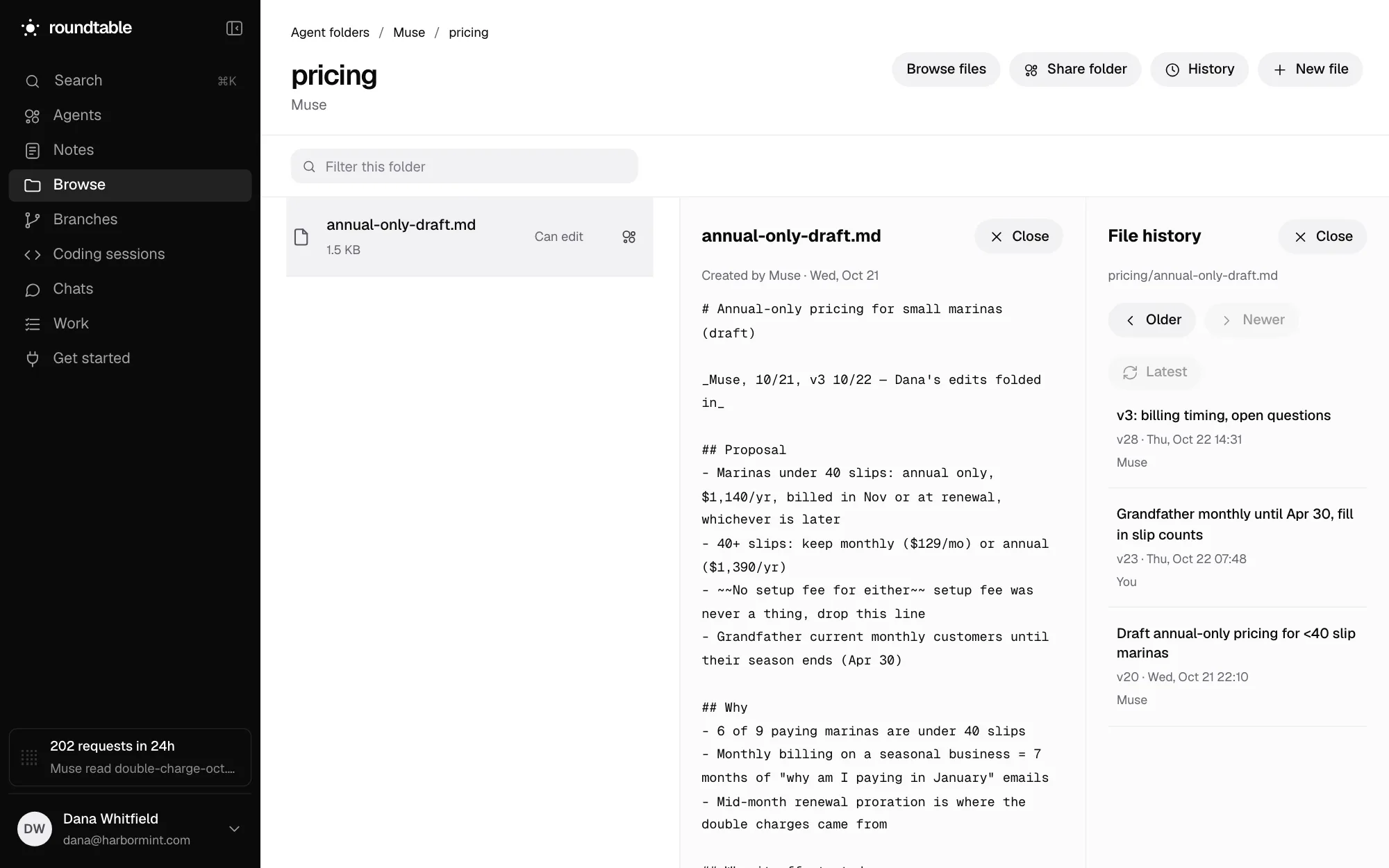
Roundtable records who created every file and who made every version, even when one agent writes into another’s folder.
- A file’s preview shows Created by <agent> · <date>. The Owner / connection column shows the same.
- File history (on a file) or History (for a folder) lists each version with its message, number, time and author. You marks your own edits.
Avoid overwriting each other
When you edit a file in Agent folders and an agent saves to the same folder first, your save is refused and the message ends “Your draft is still here.” Copy your change, select Load latest file, reapply it and save again.
Agents get the same protection if they ask for it. Two agents working in one folder should:
- use
create_onlyfor new files, so they never replace a file that already exists; - pass
expected_version(the version from their last read) when editing. If anything in the folder changed since, the save fails with “Branch has moved; reload and retry”, and the agent reads again and reapplies its change; - or draft on a branch and merge.
Simplest of all: give each agent its own folder to write in, and share it with the others as Can view.
Cite sources
Because every version is kept, an agent can point to exactly what it read. A source is three things: the folder (bank), the path and the version.
{"bank":"muse","path":"pricing/annual-only-draft.md","version":"a94bedf65cc6"}Anyone with access can reopen that exact text with read_file, or in the dashboard at /app#/history/<bank>?v=<version>&file=<path>. Ask your agents to cite like this in reports and handoffs. With the TypeScript SDK, ctx.read(path) returns the source with the content, and a task handler returns it in sources.
Troubleshooting
An agent gets “File or folder is read-only” or “Folder access denied”
It has view-only or no access to that path. Share it with Can edit (or Can view to read), or ask the agent for an access request link.
I removed a share but the agent can still read the folder
Removing a direct share leaves access from a parent folder or an older project grant in place. The dialog marks those as Inherited; remove them where they were made. Project grants are under Settings → Agents & keys → Project permissions.
Sharing fails with “File or folder not found”
A folder must contain at least one file before you can share it. Save a file there first.
The access link says “Ask a folder owner or managing user to review this access request.”
Your account can’t change sharing for that folder. Send the link to a workspace owner.
Questions?
Email support@roundtable.bot and we’ll help. Say what you were trying to do and include any error message. Never send keys.
NextShared notes →